

Remove Green Tint from a Selfie
Last updated: August 2026 · 4 min read
Green-tinted selfies are a common problem when using matcha or green filters. The filter shifts skin tones toward green, making them look unnatural. This guide explains how to fix green-tinted selfies while keeping the result looking natural.
Why green filters affect selfies differently
Skin tones sit in the red-orange part of the color spectrum. When a green filter is applied, it suppresses the red and orange channels, making skin look pale, grayish, or greenish. This is especially noticeable in selfies because faces are usually the main subject.
The effect is more pronounced in photos with:
- Close-up face shots where skin fills a large area
- Photos taken under warm lighting (the contrast with green is stronger)
- Lighter skin tones (green shifts are more visible)
- Heavy filter application (high filter strength)
Recommended approach for selfies
When correcting selfies, the goal is to reduce the green cast without making the skin look overprocessed. Here is the recommended approach:
- Start with Strength at 40–50%. Selfies need less correction than landscapes because the green shift in skin is usually more subtle than in backgrounds.
- Check skin tones first. Look at the face in the Before/After comparison. The skin should look more natural, not pinkish or overly warm.
- Increase Strength gradually. If the skin still looks green, increase by 10% at a time until it looks balanced.
- Use Warmth sparingly. A value between 0 and +5 is usually enough for selfies. Too much warmth can make skin look orange.
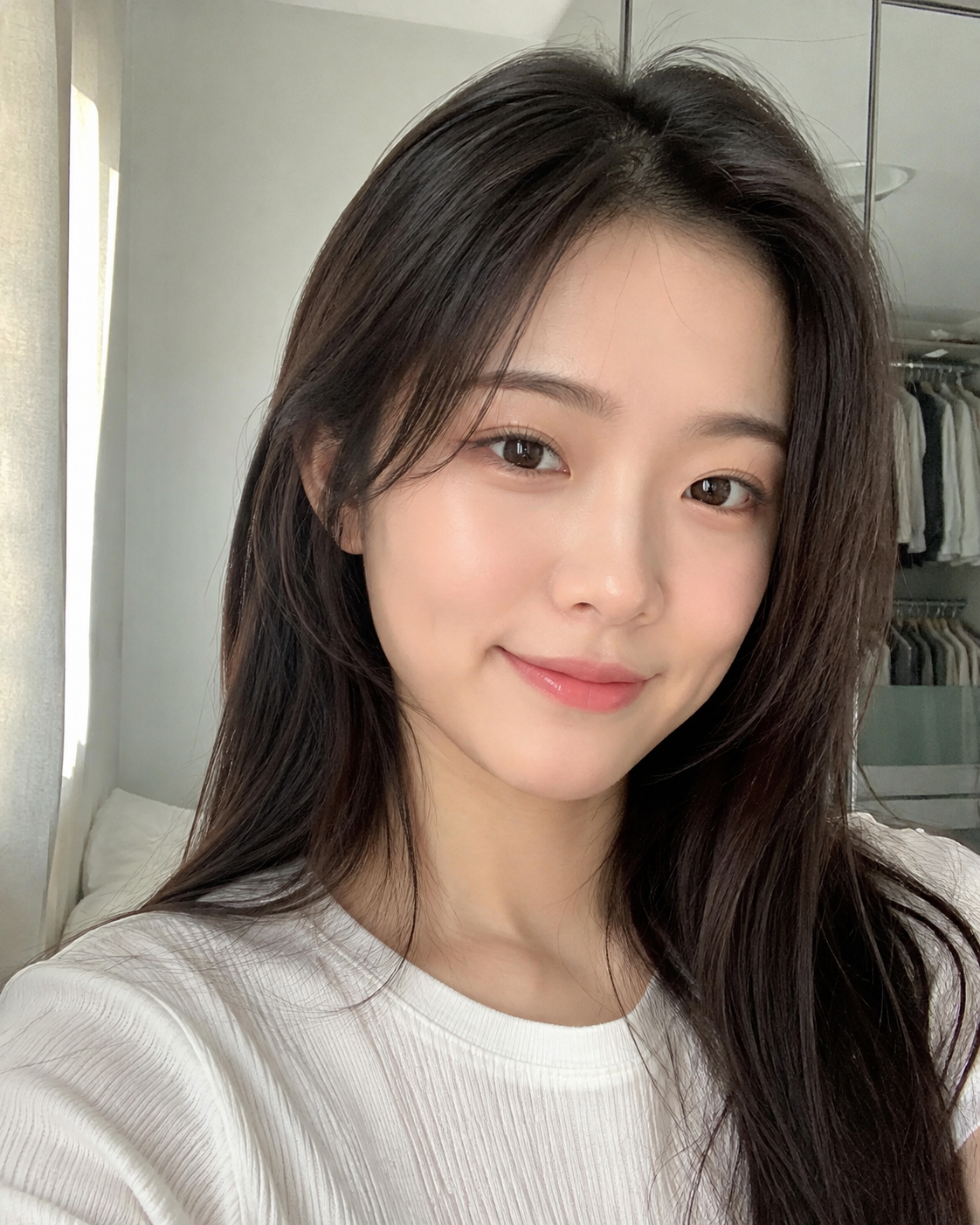
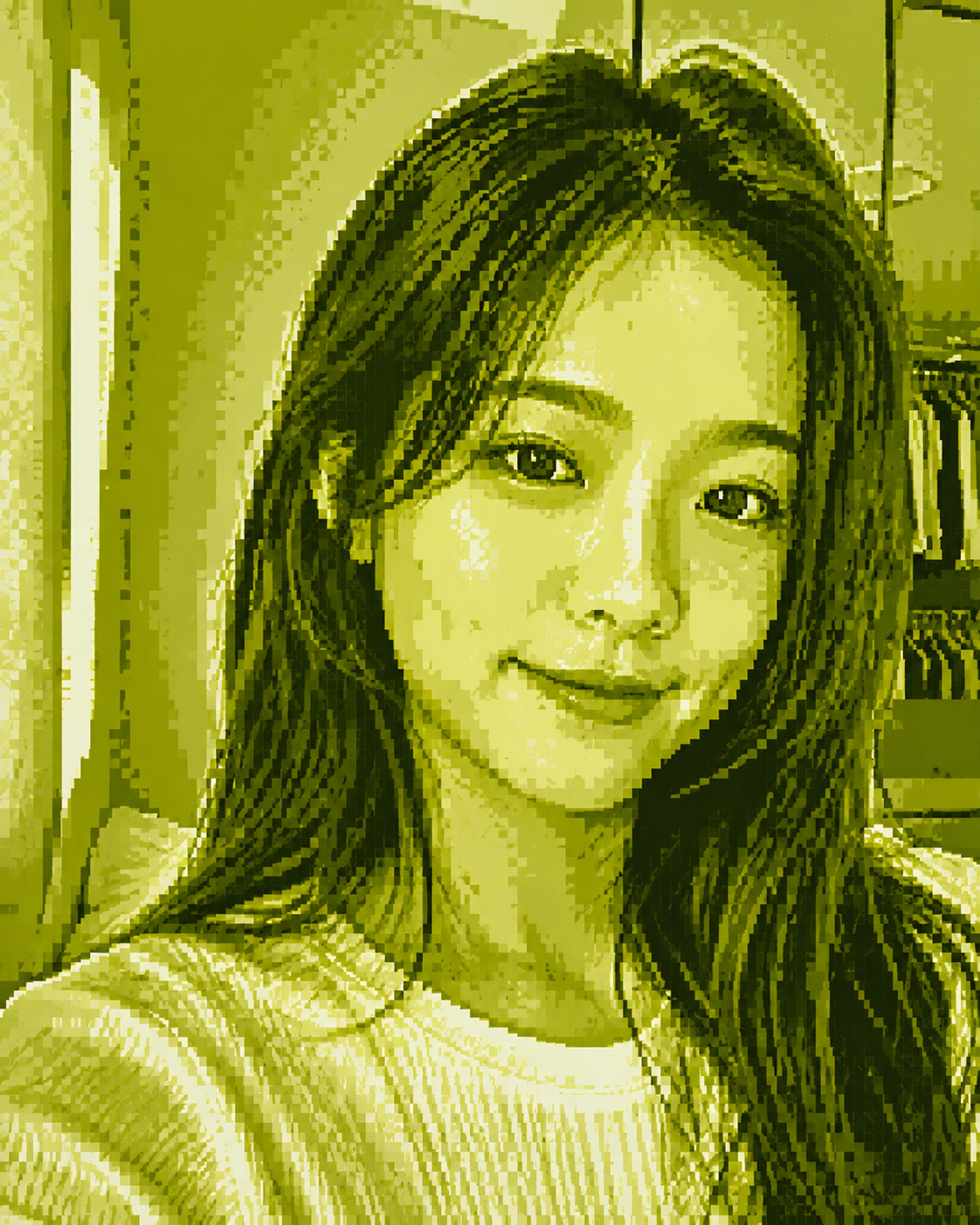
Example result. Your result may vary depending on the original photo and filter strength.
Common mistakes to avoid
- Setting Strength too high: This can make skin look pinkish or sunburned. Start low and increase gradually.
- Adding too much warmth: The Warmth slider is a finishing touch, not a primary correction. Values above +10 can make selfies look unnatural.
- Ignoring the background: If the selfie has a green background (trees, grass), the tool may reduce the background green as well. This is expected behavior.
What to expect
Unfilter reduces green color dominance in each pixel. For selfies, this means skin tones shift back toward their natural warm range. The result is a more natural-looking photo, not an exact reversal of the filter.
If the original filter also desaturated colors or added grain, Unfilter will not restore those aspects. It focuses specifically on the green color cast.